How to Back Up and Export a Cisco Modeling Labs (CML) Lab
A CML lab you spent an evening building — the topology, the addressing, the routing that finally converges — lives on the controller until something clears it: a server rebuild, a wiped node, a teammate who needs the same setup, or just you wanting last week's version back. Exporting the lab to a portable .yaml file is how you make that work durable. The file is a plain-text description of your topology and, when you ask for it, the device configurations that go with it — small enough to email, drop in a folder, or commit to git. This guide covers exporting from the lab view, what the file does and does not capture, restoring or sharing by re-import, and keeping versioned copies so a lab is never one accident away from gone. The step people miss: on a running lab, select every node and click Extract Configs before Download Lab — otherwise the file holds the starting configs, not your work.
Practice on hands-on Cisco CML labs.
What a CML export actually is
A CML lab has two homes. One is the running simulation on the controller: booted virtual routers and switches, each with its own memory, virtual NVRAM, and disk. The other is the lab definition — a structured document that describes the nodes, their interfaces, the links between them, the on-canvas layout, and a stored configuration block for each device. Exporting a lab hands you that second thing: a single .yaml file that is a complete, portable recipe for the topology, not a copy of the live machines.
This distinction is the whole reason export is worth understanding. The .yaml is text, so it is tiny, diffable, and trivial to move between servers or hand to someone else. But because it is a recipe and not a running system, it captures only what the lab definition knows about — the wiring and the configs you have told it to store. Anything that exists only inside a booted node's disk or volatile memory is not in the file. Keep that line in your head and the rest of the workflow follows naturally.
Exporting from the lab view
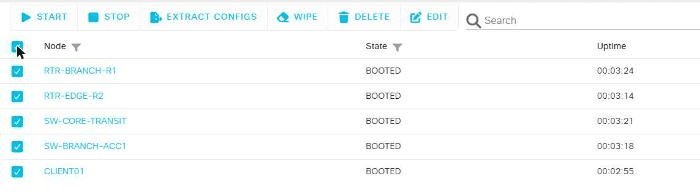
Export lives in the lab's own menu, not buried in server administration. Open the lab, and if the nodes are running, do one thing first: in the Nodes pane, select every node and click Extract Configs (menu names vary by CML release). This reads the live running-config off each booted node and writes it back into the lab definition's stored configuration for that node. Skip this step on a running lab and your export will contain whatever the configs were the last time they were saved into the definition — often the day-0 config you started with, not the work you just did.
Then choose LAB → Download Lab. CML generates and downloads a .yaml file (older labs imported from VIRL may carry a .virl extension; new exports are .yaml). If the lab is stopped, you can download it directly — there is no live state to extract, so the file simply reflects the stored definition as it stands. Exact menu wording shifts a little between CML 2.x releases, so if a label looks different from what you expect, check Cisco's current CML documentation for your version rather than hunting blindly.
One practical consequence: an export taken while nodes are stopped, or before you extract configurations, gives you topology plus the last-stored configs — which may be topology-only if you never saved device work into the definition. An export taken right after Extract Configs gives you topology plus your current running-configs. Decide which you want before you click download.
What the file captures — and what it does not
The .yaml captures the structural, reproducible parts of your lab: every node and its node type, the interfaces, the links, the canvas positions, and the stored per-node configuration text. Re-import it and you get the same topology with the same configs injected at boot. That is exactly what you want for a lab you can rebuild anywhere.
What it does not capture is a full VM snapshot of each node's disk. CML does not fold a node's virtual hard drive into the exported lab file, so anything that lives only on a node's disk or in its volatile memory — files copied into flash, certificates or keys generated at runtime, guestshell contents, unsaved counters and state — does not travel with the export. The durable artifact you actually preserve is the configuration, and there are two separate places a config can live, which trips people up constantly.
Inside the device, running-config is in RAM and startup-config is in the node's virtual NVRAM. Saving running to startup (below) means the config survives a node reload within CML. That is device-level persistence. Separately, at the lab level, Extract Configs copies running-config into the lab definition so it lands in your export and gets re-injected if the node is ever wiped or the lab is re-imported. Both are worth doing: save on the device so a reload does not lose your work, and extract at the lab level so your backup file reflects reality. A wipe returns a node to the lab's stored config, so the lab-level copy is your real safety net.
R1# show running-config | begin interface     ! confirm what you're about to keep
R1# copy running-config startup-config        ! persist to NVRAM (survives a node reload)
R1# write memory                              ! identical, older syntax
R1# show startup-config                       ! verify it saved
Re-importing to restore or share
Restoring is the mirror image of export. From the CML dashboard, use Import and select your .yaml file; CML creates a brand-new lab from the definition — it does not overwrite an existing one, so importing a backup is always safe. The new lab comes in stopped. Start it, and each node boots with the stored configuration injected as its day-0 config, so a freshly imported lab comes up already configured rather than blank. If a node was left in an odd state, wiping it before start guarantees a clean boot straight from the stored config.
Sharing works the same way, which is the quiet strength of the plain-text format. Send someone the .yaml and they import it to get a byte-for-byte copy of your topology and configs on their own controller — no screenshots, no step-by-step rebuild, no drift. This is how you hand off a study scenario, a repro case, or a graded lab and know the other person is looking at exactly what you built.
Versioning your lab files with a folder or git
Because the export is plain-text YAML, treat it like source code. Keep your labs in a dedicated folder, and put that folder under git. Every meaningful milestone — routing converges, an ACL finally does what it should, you break the lab on purpose for a troubleshooting exercise — is a moment to Extract Configs, download, and commit. Line-oriented YAML diffs cleanly, so git will show you exactly which node's config or which link changed between two versions, and you can roll back to any point without redoing work by hand.
A few habits make this pay off: name files so they sort sensibly (a topic plus a date or version, not lab-final-final-2), write a one-line commit message describing what changed, and export deliberately after real progress rather than compulsively. One caution worth stating plainly — the stored configs inside the .yaml are the actual device configs, which means any passwords, keys, or SNMP strings in running-config are sitting in that file in whatever form the device stored them. Keep lab repositories private, scrub or dummy out real credentials before sharing a file publicly, and never push a lab full of production-like secrets to a public host.
Exporting a CML lab from the command line with the API
Clicking through the CML UI is the right tool for the lab you are sitting in. It stops scaling the moment a controller holds a dozen labs and you want all of them captured on a schedule, because a manual export is only ever as current as the last time somebody remembered to take one. CML exposes the same two actions over its REST API, so a scheduled job can do exactly what you would do by hand: authenticate, list the labs, extract configurations, download the YAML.
The calls below run in the same order as the manual flow, and for the reason given earlier — the extract is what makes the downloaded file reflect what the nodes are actually running. What comes back is the same .yaml the browser would have handed you, so everything above about what the file does and does not capture applies unchanged; automating the export does not automate away the node-disk contents it never held in the first place. Two operational notes: the appliance presents a self-signed certificate, which is why curl needs -k, and an unattended job needs credentials, so keep them in the environment or a secrets file — and never in the same repository the job writes its labs into.
If you would rather work in Python, Cisco publishes virl2_client as the official client library, installable with pip. It wraps the same endpoints: iterate every lab on the controller, call extract_configurations(), then write out whatever download() returns. That is the version worth using when you want one file per lab named after the lab title instead of a directory full of UUIDs. Endpoint paths and library method names do move between CML releases, so confirm both against the API reference for the version your controller is running before you leave a job to run on its own.
# The controller answers on HTTPS with a self-signed certificate, so every
# call needs -k. Keep the password in the environment, not in the script.
$ CML=https://192.168.1.50
$ TOKEN=$(curl -k -s -X POST $CML/api/v0/authenticate -H 'Content-Type: application/json' -d '{"username":"admin","password":"'"$CML_PASS"'"}' | tr -d '"')

# Every lab on the controller, as a list of UUIDs
$ curl -k -s $CML/api/v0/labs -H "Authorization: Bearer $TOKEN"
["9c1e4b2a-...","4f77d013-..."]

# Extract first, then download -- the same order as the manual export.
# The redirect below writes into backups/, so the directory has to exist.
$ mkdir -p backups
$ for LAB in $(curl -k -s $CML/api/v0/labs -H "Authorization: Bearer $TOKEN" | jq -r '.[]'); do
>     curl -k -s -X PUT $CML/api/v0/labs/$LAB/extract_configurations -H "Authorization: Bearer $TOKEN" >/dev/null
>     curl -k -s $CML/api/v0/labs/$LAB/download -H "Authorization: Bearer $TOKEN" > backups/$LAB.yaml
> done

# Python, using Cisco's own client library (pip install virl2_client):
#   from virl2_client import ClientLibrary
#   cml = ClientLibrary("https://192.168.1.50", "admin", os.environ["CML_PASS"], ssl_verify=False)
#   Path("backups").mkdir(exist_ok=True)
#   # A lab title is free text and routinely contains / and :, so it cannot go
#   # into a filename raw -- keep the readable name, drop what a path cannot hold.
#   safe = lambda t: re.sub(r'[^A-Za-z0-9._-]+', '-', t).strip('-') or 'lab'
#   for lab in cml.all_labs():
#       lab.extract_configurations()
#       Path(f"backups/{safe(lab.title)}.yaml").write_text(lab.download())
Frequently asked questions
Why are my device configs missing from the exported .yaml file?
CML only writes the config it holds for each node, which is the extracted or startup config, not whatever is live in the router's running memory. If you edited a device in the CLI and never ran the equivalent of write memory or used CML's Extract Configs action, those changes are not in the export. Extract or save configs on every node before you export so the file reflects the state you actually built.
Can I import a CML .yaml lab into GNS3, EVE-NG, or Packet Tracer?
No. The YAML is CML-specific and references CML node definitions and image tags that other tools do not understand, so GNS3, EVE-NG, and Packet Tracer cannot open it. Packet Tracer uses its own .pkt and .pka files, and can even grade inside a pre-authored .pka, so moving a topology across platforms means rebuilding it or copying each device's text config by hand.
My export imported fine on one CML server but fails on another. What went wrong?
Import depends on the destination server having the same node definitions and image versions the lab references; if the source used an image tag the target lacks, the import errors or forces you to remap the node type. Importing into the same or a newer CML release is safest, since an older controller can reject a schema written by a newer one. Confirm the destination has matching images before you rely on the file.
Does the export save running state, like files I created on a Linux node or the converged routing tables?
No. The export is a static description of topology, node definitions, and text configs only; it does not snapshot RAM, disk contents, or runtime state. Any files you added on a Linux host and the routing adjacencies that formed at runtime are gone on re-import, because the lab boots fresh and reconverges from the saved configs.
Is exporting a lab the same as backing up my whole CML server?
No. A lab export is a single lab's YAML that you download, while a full CML backup or a hypervisor snapshot of the appliance captures the entire controller, including every lab, user account, and image. Export the YAML to protect one topology you built, but snapshot the CML virtual appliance in your hypervisor (VMware Workstation or Fusion is the supported host; VirtualBox is not) for full-server disaster recovery.
Labs to import first
The same Extract Configs export is what you upload for a grade.
Practice on real Cisco IOS
Build it on real Cisco IOS and get instant pass/fail grading on your own config.